Affiliate disclosure: TheTechVector earns a commission if you sign up via links on this page, at no extra cost to you. Our recommendations are based on independent research — we are not paid to favour any provider. Learn more about how we make money.
The best monitor for working from home UK workers can buy in 2026 does far more than give you a bigger screen. Pick the right one and it charges your laptop, acts as a USB hub, protects your eyes through an eight-hour day, and genuinely helps you get more done. With 42% of employed adults in Great Britain now working from home all or some of the time (ONS, March 2026), a good external display has become as important as a fast broadband connection. This guide covers every tier from ~£59 to ~£400, explains which features actually matter for office work, and tells you exactly which monitor suits your setup — whether you’re a laptop user on a tight budget, a MacBook owner who wants single-cable simplicity, or a power user ready to go ultrawide.
Last updated: August 2026
| Monitor | Rating | Price (Aug 2026) | Deal |
|---|---|---|---|
| Dell 27 Plus (S2725QC) | 9.2/10 | ~£325 | View Deal |
| LG UltraWide 34BA75QE | 8.9/10 | ~£399 | View Deal |
| Dell UltraSharp U2424HE | 8.7/10 | ~£182 | View Deal |
| AOC Q27G4XF | 8.6/10 | ~£125 | View Deal |
| BenQ GW2490 | 8.2/10 | ~£86 | View Deal |
| Philips 27E1N1600AE | 8.0/10 | ~£139 | View Deal |
| MSI PRO MP275 | 7.6/10 | ~£59–89 | View Deal |
Ranked by TheTechVector Rating, highest first. Size, resolution and USB-C power delivery for each model are in the full reviews below. TheTechVector Rating is our own editorial score out of 10 — see our editorial policy.
Our top pick is the Dell 27 Plus (S2725QC) at ~£325 — 4K, 120Hz, USB-C 65W and 99% sRGB tick every box for a serious home office.
Check Price on Amazon →
Quick verdict: the best monitor for working from home UK buyers by category
Best budget pick — 8.2/10
BenQ GW2490 — ~£86. TÜV Eye Comfort certified, good build quality, 24-inch 1080p. Ideal if you need a clean second screen without spending much.
Best budget 1440p — 8.6/10
AOC Q27G4XF — ~£125. Getting 27-inch 1440p for £125 is remarkable value. Sharp text with no Windows scaling issues. The best single upgrade from a laptop screen.
Best USB-C docking monitor — 8.7/10
Dell UltraSharp U2424HE — ~£182. 90W USB-C charges a MacBook Pro 14-inch under full load. One cable from laptop to screen, charging, and peripherals.
Best overall — 9.2/10
Dell 27 Plus (S2725QC) — ~£325. 4K, 120Hz, USB-C 65W, 99% sRGB, built-in speakers, three-year warranty. The monitor that ticks every box for a serious home office.
Best ultrawide — 8.9/10
LG UltraWide 34BA75QE — ~£399. 34-inch 1440p, USB-C 90W, KVM switch, and a LAN port. The closest you can get to a dual-monitor setup in a single display.
Best for MacBook users
Dell 27 Plus or LG 34BA75QE — both connect via USB-C with no adapters. The Dell’s 99% sRGB pairs well with macOS colour management for accurate on-screen colour.
What makes a good monitor for working from home?
Four things decide whether a monitor is genuinely useful for office work: resolution relative to screen size, panel type, ergonomics, and connectivity. Here is the plain-English version of each.
Resolution at the right size. At 24 inches, 1080p gives you around 92 PPI — perfectly sharp for everyday work. At 27 inches, 1080p drops to 82 PPI, which starts to look soft on text-heavy work. That is why 1440p is the right resolution for 27-inch monitors: it delivers ~109 PPI, which is noticeably sharper, with no need to fiddle with Windows scaling. What about 4K at 27 inches? You get ~163 PPI, but Windows needs to be set to 150% scaling or the text becomes unreadably small. At 150% scaling, you effectively get the same screen real estate as 1440p but with sharper rendering — genuinely worth it if you spend all day reading documents or working with fine detail.
Panel type. IPS (In-Plane Switching) is the right choice for office work. It gives accurate colours, wide viewing angles so your screen looks consistent even when you lean back, and good brightness. VA panels have deeper blacks but worse viewing angles and colour consistency. OLED delivers far better contrast — but at the prices we are covering, you will only see it in a couple of premium picks.
Ergonomics. A monitor that is not at the right height causes neck and shoulder pain fast. Look for height adjustment (not just tilt) on the stand, or make sure the monitor has a VESA mount (75×75mm or 100×100mm) so you can attach a monitor arm. A monitor arm frees up desk space, lets you position the screen exactly right, and is especially useful if you also use a standing desk. Most budget monitors offer tilt only — factor in the cost of a separate stand or arm if you need to raise the screen.
Connectivity. HDMI is fine for most setups. USB-C with Power Delivery (PD) is a significant upgrade for laptop users: one cable does video, data, and charging simultaneously. The wattage of that charging matters enormously — more on this in the USB-C section below. If you are looking at pairing a monitor with the right laptop, our guide to the best laptops for working from home covers which ports each laptop has.
Best budget monitors for working from home — under £150
Budget monitors under £150 cover a wide range. At the very cheapest end, the MSI PRO MP275 (~£59–89, as of August 2026) gives you 27 inches and 1080p IPS for under £90 — hard to fault as a basic second screen. The Amazon Basics 23.8-inch sits at around £86 and is a no-frills option worth considering if you are already buying other things via Prime. But the two picks below offer meaningfully better value.
BenQ GW2490 — the budget eye-care pick

The BenQ GW2490 costs around ~£86 (as of March 2026) and is one of the few genuinely eye-care-focused monitors under £100. BenQ’s Eye-Care technology includes TÜV Rheinland certification for both flicker-free performance and low blue light — not a simple mode toggle but an independently tested process that maintains colour accuracy while reducing blue light output. That distinction matters: many cheap monitors claim “blue light filter” but shift the image noticeably yellow when you activate it. The GW2490 does not.
At 24 inches and 1080p you get around 92 PPI — sharp enough for video calls, spreadsheets, and documents. The stand offers tilt but not height adjustment, so if you need to raise the screen, budget for a monitor arm or stand. There is no USB-C here — HDMI is your connection, as expected at this price. Build quality is above average for under £90, with slim bezels and a clean office-friendly aesthetic.
Pros
- TÜV Rheinland eye-care certified
- Good colour accuracy for the price
- Slim bezels, clean design
Cons
- No USB-C — HDMI only
- No height adjustment on stand
AOC Q27G4XF — the best budget 1440p monitor for working from home
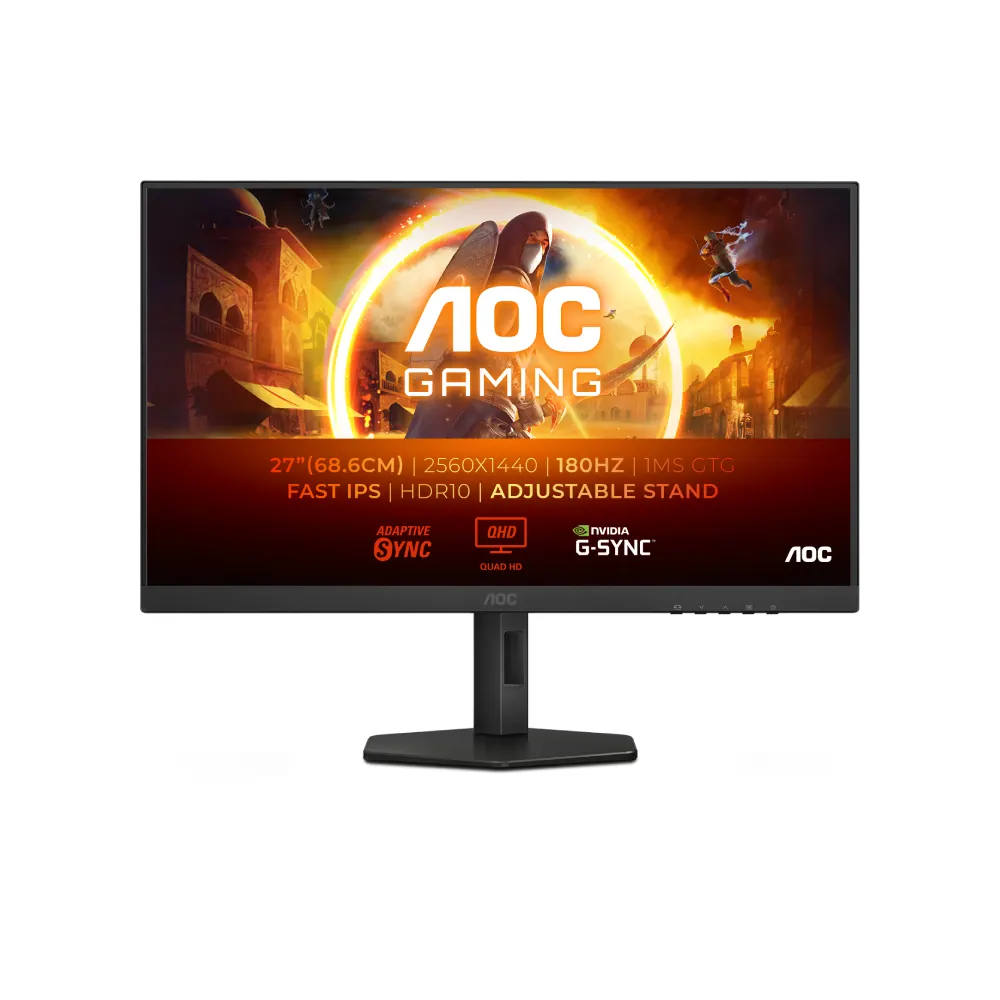
At around ~£125 (as of August 2026), the AOC Q27G4XF is exceptional value. It gives you 27 inches at 1440p resolution on a Fast IPS panel with a 180Hz refresh rate — a spec sheet that typically appears on gaming monitors costing twice as much. For office work, the 1440p resolution at 27 inches delivers ~109 PPI: text is noticeably sharper than on a 1080p monitor of the same size, and you gain meaningful extra screen real estate for having two windows side by side without squinting.
The 180Hz refresh rate is irrelevant for spreadsheets, but the Fast IPS panel means low response times and accurate, consistent colour across a wide viewing angle — both useful for long days in front of the screen. There is no USB-C on this monitor, and the stand is more limited than the pricier picks below, but at £125 for 27-inch 1440p, that is a reasonable trade-off. This is the single best monitor upgrade you can make from a laptop screen if you are working to a budget.
Pros
- 1440p at 27-inch — sharp text, no Windows scaling needed
- Fast IPS — accurate, wide viewing angle
- Exceptional value for resolution
Cons
- No USB-C
- Basic stand — tilt only
Best mid-range monitors for working from home — £150–£350
This is where the best monitor for working from home UK buyers will spend most. The mid-range is where USB-C Power Delivery becomes genuinely practical, ergonomic stands become standard, and resolution hits 1440p or even 4K. Four monitors stand out at this tier.
Dell UltraSharp U2424HE — the best USB-C docking monitor under £200
The Dell UltraSharp U2424HE costs around ~£182 (as of August 2026) and is the most practical monitor you can buy if you want a genuine one-cable docking solution for a laptop. Its USB-C port delivers 90W Power Delivery — enough to charge a MacBook Pro 14-inch at full load, or virtually any Windows ultrabook. Connect one USB-C cable from your laptop to this monitor and you get video, charging, and access to the monitor’s USB hub in a single move. That is the whole appeal of this category, and Dell executes it well here. If you’d rather run a dedicated docking station alongside a MacBook instead of relying on a monitor’s built-in hub, our guide to the best docking stations for MacBook UK compares the top picks.
The 24-inch 1080p IPS panel is TÜV Rheinland Eye Comfort certified, the stand offers full height, tilt, and pivot adjustment, and Dell backs it with a three-year on-site warranty — not something you get from budget rivals. The resolution is 1080p rather than 1440p, which is a compromise at this price point, but the sheer ergonomic quality of the stand and the 90W charging make it the right choice for anyone whose priority is desk tidiness and laptop compatibility. If you need 1440p, the Philips or iiyama below are worth considering instead.
Pros
- 90W USB-C — charges MacBook Pro 14-inch
- Excellent ergonomic stand (height, tilt, pivot)
- TÜV Eye Comfort certified
- Three-year Dell on-site warranty
Cons
- 1080p at 24-inch — not 1440p
- No built-in speakers
Two other mid-range monitors are worth knowing about. The Philips 27E1N1600AE (~£139, Amazon UK, 21 October 2026) offers 27-inch 1440p IPS without USB-C — good sharp image quality and a clean design, with no cable docking. It is the pick for those who want 27-inch 1440p and do not need USB-C charging. The iiyama ProLite XUB2797QSN (~£219, as of August 2026) adds USB-C docking to a 27-inch 1440p panel, making it a more complete mid-range solution than the Philips — though the Dell S2725QC below is the more compelling option if you can stretch to £325.
Dell 27 Plus (S2725QC) — the best overall home office monitor
The Dell 27 Plus (model S2725QC) at ~£325 (Amazon UK, 20 October 2026) is the monitor that most serious home office workers should buy if they can stretch the budget. It combines 27-inch 4K resolution (3840×2160), a smooth 120Hz IPS panel, USB-C 65W Power Delivery, 99% sRGB colour coverage, dual built-in speakers, and a full-height-adjustable ergonomic stand — all backed by Dell’s three-year warranty. That combination is genuinely rare at this price.
The 4K panel at 27 inches delivers ~163 PPI, which means crisp, almost-print-quality text that makes a real difference when reading documents or coding for hours. Set Windows scaling to 150% and everything looks exactly right — no blurry text, no layout issues. The 65W USB-C charging covers MacBook Air and most Windows ultrabooks, though MacBook Pro 16-inch users will still need to keep their charger plugged in under heavy load (see the USB-C wattage guide below). The dual speakers are modest but functional for calls. This is the top recommendation across multiple UK sources in August 2026, and it earns that status.
Pros
- 4K at 27-inch — genuinely sharp text
- USB-C 65W — charges MacBook Air and ultrabooks
- 99% sRGB — excellent colour accuracy
- Three-year Dell warranty
- Built-in speakers
Cons
- 65W USB-C — not enough for MacBook Pro 16-inch under full load
- £325 is a stretch for occasional home workers
Best premium monitors for working from home — over £350
Above £350, you are choosing between an ultrawide and a 4K panel with Thunderbolt hub. Both justify the cost if you spend all day at your desk — but they suit different working styles.
LG UltraWide 34BA75QE — the best single-display home office setup
The LG UltraWide 34BA75QE (~£399, as of July 2026) is a 34-inch, 3440×1440 ultrawide monitor with 90W USB-C Power Delivery, a built-in KVM switch, an Ethernet LAN port, and a USB hub. The 90W USB-C means it charges a MacBook Pro 14-inch reliably, and the LAN port lets you plug a network cable directly into the monitor — useful if your desk is not near a router and you want a wired connection without running a cable to your laptop.
The 34-inch ultrawide (21:9 aspect ratio) gives you 3440 horizontal pixels — roughly equivalent to two 1920×1080 monitors placed side by side, but with no bezel gap in the middle. For anyone who works with many windows open simultaneously (coding, financial analysis, video editing), this is more functional than a single 27-inch monitor. The KVM switch lets you control two computers with one keyboard and mouse — handy if you switch between a work laptop and a personal machine. The main limitation: you cannot rotate an ultrawide to portrait orientation, and the wider format can feel wasteful if you spend most of your day in a single full-screen application.
Pros
- 90W USB-C — charges MacBook Pro 14-inch
- Built-in LAN port and KVM switch
- Vast screen space — equivalent to two 1080p monitors
- No bezel gap
Cons
- Cannot rotate to portrait
- Needs a wider desk — 34-inch takes more space
- Higher GPU load than a single standard monitor
The other strong premium pick is the iiyama ProLite XUB3293UHSN-B5 (~£352–412, as of August 2026): a 32-inch 4K monitor with USB-C hub. Thirty-two inches at 4K delivers ~138 PPI — that is the sweet spot where 4K looks genuinely better than 1440p without needing aggressive Windows scaling. If you find 27 inches too small for 4K but want the resolution, this is the one. It is less feature-rich than the LG (no LAN, no KVM) but the 4K panel is sharper for document work.

Full comparison: specs at a glance
| Monitor | Panel | Resolution / Size | USB-C PD | Height adjust | VESA | Warranty | Price (Aug 2026) |
|---|---|---|---|---|---|---|---|
| MSI PRO MP275 | IPS | 1080p / 27-in | No | No | Yes | 3yr | ~£59–89 |
| BenQ GW2490 | IPS | 1080p / 24-in | No | No | Yes | 3yr | ~£86 |
| AOC Q27G4XF | Fast IPS | 1440p / 27-in | No | No | Yes | 3yr | ~£125 |
| Dell U2424HE | IPS | 1080p / 24-in | 90W | Yes | Yes | 3yr on-site | ~£182 |
| Philips 27E1N1600AE | IPS | 1440p / 27-in | No | Yes | Yes | 3yr | ~£139 |
| iiyama XUB2797QSN | IPS | 1440p / 27-in | Yes | Yes | Yes | 3yr | ~£219 |
| Dell S2725QC | IPS | 4K / 27-in | 65W | Yes | Yes | 3yr on-site | ~£325 |
| LG 34BA75QE | IPS | 1440p UW / 34-in | 90W | Yes | Yes | 3yr | ~£399 |
| iiyama XUB3293UHSN | IPS | 4K / 32-in | Yes | Yes | Yes | 3yr | ~£352–412 |
USB-C monitors: the single-cable solution for laptop workers
USB-C Power Delivery (PD) is the feature that most home office articles gloss over, and it is the most important one if you use a laptop. Here is what the wattage numbers actually mean in practice.
65W USB-C PD charges a MacBook Air M3 or M4, most Windows ultrabooks (Dell XPS 13, HP Spectre 13, Lenovo ThinkPad X1 Carbon), and any laptop whose own charger is rated at 65W or below. This covers the majority of thin-and-light laptops sold in the UK. The Dell S2725QC delivers 65W.
90W USB-C PD charges a MacBook Pro 14-inch under full load, most 15-inch laptops, and higher-powered Windows machines. If your laptop came with a 90W or 96W charger, you need a 90W monitor to keep it charged while working. The Dell U2424HE and LG 34BA75QE both deliver 90W.
100W USB-C PD is what a MacBook Pro 16-inch needs to charge at full speed under heavy load. At the monitor price points in this guide, no monitor reaches 100W. If you own a MacBook Pro 16-inch and want to use a monitor as your dock, the 90W options will slow-charge the laptop rather than fully keeping pace — you may still need to keep the original charger plugged in during intensive tasks.
Thunderbolt vs DisplayPort Alt Mode vs plain USB-C. Not all USB-C ports on monitors are equal. A monitor with Thunderbolt 4 (like the Dell UltraSharp U2725QE at ~£531) supports daisy-chaining other Thunderbolt monitors, has higher bandwidth, and is fully compatible with Thunderbolt laptops including all modern MacBooks. A monitor with DisplayPort Alt Mode over USB-C (most of the monitors in this guide) works perfectly for video and charging but cannot daisy-chain. Plain USB-C with no Alt Mode or Thunderbolt does not carry video at all — make sure the listing says “USB-C with video” or “USB-C DisplayPort Alt Mode” before buying. Check your laptop’s port specifications too — our laptop buying guide explains which ports each type of laptop has.
MacBook compatibility and colour accuracy. MacBooks support the DCI-P3 wide colour gamut, meaning they benefit noticeably from monitors that cover DCI-P3 or high sRGB (99%+). A monitor with 99% sRGB or 90%+ DCI-P3 paired with a MacBook and macOS colour management will display more accurate, richer colours than the same monitor connected to a Windows laptop without a colour-managed workflow. This is one reason the Dell S2725QC (99% sRGB) is particularly well-suited to MacBook users. For more on choosing the right laptop for your home office, see our round-up of the best laptops for everyday use.
One ultrawide or two monitors? An honest answer
This is one of the most common questions from home office workers upgrading their setup. The answer is less clear-cut than most articles suggest.
Resolution comparison. A 34-inch ultrawide at 3440×1440 has roughly the same horizontal pixel count as two 1920×1080 monitors placed side by side. You get similar screen real estate — but no bezel gap in the middle, which makes the ultrawide genuinely better for work that benefits from a continuous canvas (spreadsheets, long documents, video editing timelines). Two 1440p monitors side by side (5120 horizontal pixels total) is more than an ultrawide offers, but that configuration typically requires a docking station with dual video outputs.
The case for an ultrawide. One cable to manage. No bezel interrupting your view. A cleaner desk. Better for workflows that use the full width (coding with a file tree + editor + terminal, for example). If your laptop has a single USB-C port and you want to avoid a docking station, an ultrawide with USB-C PD and a USB hub (like the LG 34BA75QE) solves the problem in one purchase.
The case for two monitors. Two separate monitors let you turn one to portrait orientation — ideal for reading long documents or browsing long web pages. You can independently position them at different heights. You can replace one without replacing both. And if you find you mostly use just one screen, a second monitor adds less value than a bigger single screen would. Two monitors also require a laptop with two video outputs (or a docking station), which adds cost and cable complexity.
The verdict. Go ultrawide if you want one clean cable setup, work in applications that benefit from a continuous wide canvas, and your desk is at least 80cm deep. Go dual monitors if you need portrait rotation, want to mix resolutions or screen sizes, or already have one monitor you want to keep. If your laptop has only one video output and no docking station, a single ultrawide is almost always simpler.
If you decide that two separate monitors are the right choice for you, our complete guide to setting up dual monitors covers everything from cable types and connectors through to desk ergonomics and troubleshooting common connectivity issues.
How to set up your monitor to reduce eye strain
Spending eight hours in front of a monitor is hard on your eyes whether the monitor is budget or premium. The setup matters as much as the screen itself.
Distance and height. Your monitor should be 50–100cm from your eyes (roughly arm’s length). The top of the screen should be at or just below eye level — so you look slightly downward at the centre of the screen. This reduces neck strain and limits the amount of white sclera visible above your iris, which reduces eye dryness. Most people position their monitor too high, which forces a slightly strained upward gaze. A height-adjustable stand or a monitor arm solves this.
The 20-20-20 rule. Every 20 minutes, look at something at least 20 feet away for at least 20 seconds. This reduces the focusing fatigue that causes tired, sore eyes at the end of the day. UK optometrists and NHS guidance consistently recommend this for people who work at screens. Set a timer until it becomes habitual.
TÜV certification vs generic blue light modes. Many monitors claim to reduce blue light with a mode toggle that simply yellows the image. TÜV Rheinland Eye Comfort certification is more meaningful: it tests whether the monitor genuinely reduces blue light while maintaining colour accuracy, not just shifts the white balance. The BenQ GW2490 and Dell UltraSharp range carry this certification. Computer Vision Syndrome (CVS) — the umbrella term for eye discomfort from prolonged screen use — is driven primarily by focusing fatigue and glare, not blue light alone, so a good matte anti-glare panel matters as much as any blue light feature.
Monitor arm vs height-adjustable stand. A height-adjustable stand is sufficient for most people. A monitor arm goes further: it lets you push the screen out of the way when you are not using it, frees up desk space, and allows very precise positioning. If you use a standing desk or work from a wheelchair, a monitor arm is particularly useful. Most monitors in this guide are VESA compatible (75×75mm or 100×100mm) and work with any standard monitor arm.
Which monitor is right for your home office?
You work from home occasionally and just need a second screen
The MSI PRO MP275 (~£59–89) or BenQ GW2490 (~£86) covers everything you need. Save your money and connect via HDMI. If you want noticeably sharper text on a bigger screen, the AOC Q27G4XF at ~£125 is the upgrade worth making.
You work from home every day and want a tidy desk
The Dell UltraSharp U2424HE (~£182) gives you USB-C docking, a proper ergonomic stand, and TÜV eye-care certification. One cable from your laptop to the monitor handles everything. If your work involves colour-accurate documents or you want 4K, step up to the Dell 27 Plus (S2725QC) at ~£325.
You are a MacBook user
Check your MacBook model first. MacBook Air (any M-series): the Dell S2725QC‘s 65W USB-C is sufficient. MacBook Pro 14-inch: the Dell U2424HE‘s 90W is the minimum to charge under load. MacBook Pro 16-inch: the LG 34BA75QE‘s 90W will slow-charge — you may still need your original charger for peak performance.
You need maximum screen space for productivity
The LG UltraWide 34BA75QE (~£399) gives you the equivalent of two 1080p monitors in a single display with no bezel gap. For true 4K sharpness at a comfortable viewing size, the iiyama XUB3293UHSN-B5 (~£352–412) offers 32-inch 4K — the sweet spot for resolution without aggressive scaling.
How to set up your new home office monitor: five steps
- Check your laptop’s ports. Identify whether you have USB-C with DisplayPort Alt Mode, HDMI, or DisplayPort. Most modern laptops have USB-C; older ones rely on HDMI. This determines which monitors are compatible without adapters.
- Choose the right resolution for your screen size. 24-inch: 1080p is fine. 27-inch: pick 1440p or 4K. 32-inch or larger: 4K is worth it. Anything smaller than 27 inches at 4K will need Windows scaling and can cause blurry third-party apps.
- Connect and configure. Plug in via your cable of choice. On Windows, press Win + P to choose your display mode (Extend is the right choice for productivity). On macOS, go to System Settings → Displays to arrange screens and set resolution.
- Set your display scaling. For 4K monitors on Windows, go to Settings → System → Display → Scale and set to 150%. On macOS, select “More Space” or the “Looks like X” resolution option for your monitor size.
- Adjust monitor height and distance. The top of the screen should sit at or just below eye level, approximately 50–100cm from your face. Use the stand’s height adjustment or a monitor arm to get this right before you start work — your neck will thank you.
Best monitor for working from home UK: your questions answered
What size monitor is best for working from home?
27 inches is the sweet spot for most home office setups. At 27 inches with 1440p resolution, you get ~109 PPI — sharp text without scaling issues, and enough screen space to have two windows side by side comfortably. If your desk is small or you sit close to the screen, 24 inches is perfectly practical. Go to 32 inches or larger only if you plan to use 4K resolution — at 32 inches, 4K delivers ~138 PPI without needing aggressive scaling.
Is 4K worth it for a home office monitor?
4K is worth it if you spend most of your day reading text-heavy documents, working with fine detail (design, photography, code with a small font size), or if you will use the monitor for years and want it to feel modern throughout. At 27 inches, 4K requires Windows scaling set to 150%, which delivers sharper rendering than 1440p at the same effective screen real estate. At 32 inches or larger, 4K at 125–150% scaling feels natural and noticeably better than 1440p. For someone who mainly browses, uses email, and joins video calls, 1440p is hard to justify upgrading past.
Do I need a USB-C monitor for my laptop?
USB-C monitors are worth it if you want a tidy desk and a one-cable connection from your laptop to screen, charging, and peripherals. They are not strictly necessary — any monitor with HDMI works fine. The key question is your laptop’s charging wattage: a USB-C monitor with 65W PD charges a MacBook Air or typical ultrabook; 90W covers a MacBook Pro 14-inch. If your laptop came with a 100W charger (MacBook Pro 16-inch, some gaming laptops), no current monitor at these prices fully replaces the original charger under heavy load.
Should I get one large monitor or two smaller ones?
One large ultrawide (34-inch, 3440×1440) gives you roughly the same horizontal screen real estate as two 1920×1080 monitors with no bezel gap in the middle — and with far less cable complexity. Two monitors win if you need one in portrait orientation, want to match a monitor you already own, or prefer being able to replace one screen independently. If your laptop only has one video output, a single ultrawide with USB-C docking and a built-in hub (like the LG 34BA75QE) is usually the cleaner solution.
Is 1440p better than 1080p for home office use?
1440p is noticeably better than 1080p at 27 inches. At 27 inches, 1080p delivers 82 PPI — text looks slightly soft on prolonged reading. 1440p at the same size gives 109 PPI, which is visibly sharper and reduces the eye strain that comes from a slightly fuzzy display. At 24 inches, 1080p at 92 PPI is perfectly sharp and the upgrade to 1440p is harder to justify unless you are doing image or design work. The AOC Q27G4XF makes 27-inch 1440p available at ~£125, removing most of the cost argument for staying at 1080p.
What monitor features help with eye strain during an 8-hour day?
Eye strain during a long working day is driven mainly by focusing fatigue and glare, not blue light alone. The most useful features are: a matte anti-glare panel (avoids reflections from windows and lights), flicker-free backlight (avoids the subtle flicker that causes headaches), and TÜV Rheinland Eye Comfort certification (independently verified, not just a mode toggle). Position the screen at arm’s length (50–100cm), with the top of the screen at or just below eye level, and practise the 20-20-20 rule — every 20 minutes, look at something 20 feet away for 20 seconds.
How far should I sit from my monitor when working from home?
The recommended viewing distance is 50–100cm (roughly arm’s length) from your eyes to the monitor surface. For a 24-inch monitor, the closer end of that range (50–60cm) feels natural. For a 27-inch or 32-inch monitor, 60–80cm is comfortable. The top of the screen should sit at or just below eye level so you look slightly downward at the centre. Sitting too close causes eye strain from constant refocusing; sitting too far makes text harder to read and encourages you to lean forward — both cause posture problems.
Which monitors work best with a MacBook?
MacBooks work well with any USB-C monitor that supports DisplayPort Alt Mode — no adapter needed. For best colour accuracy, choose a monitor with 99% sRGB or 90%+ DCI-P3 coverage: macOS colour management uses this data to display accurate colours. The Dell 27 Plus (S2725QC) with 99% sRGB and 65W USB-C is the best match for a MacBook Air or MacBook Pro 14-inch. The LG UltraWide 34BA75QE with 90W is the better option for a MacBook Pro 16-inch. Avoid monitors that only list Thunderbolt compatibility if you want a warranty-backed pairing — all the USB-C monitors in this guide work via DisplayPort Alt Mode, which is standard on all modern MacBooks.
Do I need a docking station if I buy a USB-C monitor?
Not necessarily. A USB-C monitor with built-in USB hub (like the Dell U2424HE or LG 34BA75QE) effectively acts as a basic dock — your laptop plugs into the monitor via USB-C, and the monitor’s USB ports connect your keyboard, mouse, and other peripherals. You only need a separate docking station if you want dual external monitors (most laptops need a dock to output to two screens simultaneously), need more ports than the monitor provides, or have a laptop whose single USB-C port does not support video output.
What refresh rate do I need for office work?
60Hz is the minimum for office work and is perfectly adequate for documents, email, spreadsheets, and video calls. 75Hz is a noticeable improvement in smoothness when scrolling through long documents or web pages — worth choosing if two monitors at the same price differ only on this. 120Hz or higher makes scrolling feel very smooth and is pleasant for day-to-day use, but does not materially improve productivity for office tasks. The AOC Q27G4XF (180Hz) and Dell S2725QC (120Hz) both offer high refresh rates at their respective price points, though for WFH use alone you would not notice if they were running at 60Hz.
Compare prices on the best home office monitors
All prices checked August 2026. Click through to see current deals at each retailer.
Disclosure: TheTechVector earns a small commission if you purchase via affiliate links on this page. This does not affect which monitors we recommend — our picks are based on research, not commission rates. Amazon Associates standard rate applies (3%) for all monitors listed. Full disclosure policy.
Pair your new monitor with an ergonomic mouse to reduce wrist strain during long working days.

Written by the TheTechVector Team
We research UK broadband, VPN, laptop, and mobile deals so you don’t have to. All prices are checked before publication — if something’s out of date, let us know.
This site contains affiliate links to products. We may receive a commission for purchases made through these links.