Affiliate disclosure: TheTechVector earns a commission if you sign up via links on this page, at no extra cost to you. Our recommendations are based on independent research — we are not paid to favour any provider. Learn more about how we make money.
Dual Monitor Setup UK 2026: Better Productivity
A dual monitor setup is two screens working together as one extended desktop, and getting it right comes down to three things: whether your laptop can actually drive two external displays, which cable or hub matches your ports, and how you handle Windows or macOS quirks once it’s plugged in. This guide covers the hardware check, the cable and dock decision, step-by-step setup on Windows 11 and macOS, the most common problems, and how to mount two screens with a monitor arm.
Last updated: August 2026
Quick Comparison: HDMI vs DisplayPort vs USB-C for Two Screens
Here’s the short version of which connection actually supports a dual monitor setup, and which will leave you disappointed.
| Connection | Max output | Bandwidth | Best for |
|---|---|---|---|
| HDMI 2.0 | 4K@60Hz | 18Gbps | A single standard monitor |
| HDMI 2.1 | 4K@120Hz or 8K@60Hz | 48Gbps | High refresh rate or gaming monitors |
| DisplayPort 1.4 (with DSC) | Two 4K@60Hz screens from one port | ~32.4Gbps effective | Driving dual 4K from a laptop’s USB-C DisplayPort Alt Mode |
| Basic USB-C hub (no MST/DisplayLink) | Usually one extended 4K display | Varies by hub | A simple single-monitor USB-C setup — not reliable for two independent extended screens |
| USB4 / Thunderbolt dock | Two 4K@60Hz+ displays | 40Gbps | The most reliable way to run dual 4K from one cable |
| DisplayLink dock | Two external displays, even on single-port laptops | Video compressed over USB | Base-spec MacBook Air or older laptops limited to one native external display |
Quick Verdict: What to Buy for Your Dual Monitor Setup
Best all-round cable
A certified DisplayPort 1.4 or HDMI 2.1 cable — cheap, and it removes the most common cause of a flickering or undetected second screen.
Best for a base MacBook Air
A DisplayLink-based USB-C hub — it’s the one workaround that lets a single-external-display MacBook Air run two screens at once.
Best for two 4K screens
A USB4 or Thunderbolt docking station — one cable, full bandwidth, no compromise on resolution or refresh rate.
Best monitor arm
A dual gas-spring VESA arm — frees up desk space and gets both screens to the same eye-level height, which single stands rarely manage together.
Do You Actually Need Two Monitors? (Ultrawide vs Dual)
Two monitors give you two genuinely separate windows of workspace — useful if you snap different apps to each screen and don’t want one giant canvas with a bezel running through the middle of your spreadsheet. An ultrawide gives you one continuous screen instead, suited to a single wide document, a timeline, or a few windows side by side without a seam.
If you’re still deciding on the screens themselves, our best monitors for working from home guide covers the ultrawide-vs-dual decision in more depth, with picks across budget, mid-range and premium tiers. This article assumes you’ve already got — or are about to buy — two separate screens, and focuses on getting them working together properly.
If you’re considering using a large TV as a secondary display for your home office, our guide to wall mounting TVs covers cable management, VESA standards, and installation techniques for office environments where space is at a premium.
As a rule of thumb: go dual if you multitask across distinct apps, or if budget favours two cheaper screens over one premium ultrawide. Go ultrawide if you want one clean surface with no bezel gap, or desk space is tight.
What You Need Before You Start
Not every laptop can drive two external monitors — the single most common reason a dual monitor setup fails before it’s even begun. It comes down to graphics output, not the monitors themselves.
Most modern Windows laptops with a USB-C port supporting DisplayPort Alt Mode can output to two external 4K@60Hz displays, provided the port and monitor both support DisplayPort 1.4 with Display Stream Compression (DSC). Older laptops, or ones with a charging-only USB-C port, generally can’t — you’ll need a dock instead. Desktop PCs are simpler: two free graphics card outputs, and you’re set.
Apple’s MacBook Air and Pro models with the M3 chip can run two external displays with the lid closed (clamshell mode) — the first up to 6K@60Hz or 4K@144Hz, the second up to 5K@60Hz or 4K@100Hz (support.apple.com, accessed August 2026). With the lid open, most base MacBook Air models are still limited to one native external display — which is where a DisplayLink hub comes in, covered below.
If you’re shopping for a new laptop with this in mind, our best work-from-home laptops guide flags port availability, and our laptop buying guide covers what to check on the spec sheet. Before buying a cable or dock: count your video-capable ports, check each monitor’s inputs, and confirm your graphics hardware handles two displays at your target resolution.
HDMI vs DisplayPort vs USB-C: Which Cable Do You Actually Need?
The cable matters more than most buying guides let on. Get the wrong one and you’ll see a flickering picture, a refresh rate that won’t hit its advertised number, or a second screen that just doesn’t show up.
HDMI is the simplest option and works on almost every monitor and laptop. HDMI 2.0 caps out at 4K@60Hz with 18Gbps of bandwidth — fine for office work. HDMI 2.1 pushes that to 4K@120Hz or 8K@60Hz with 48Gbps, which matters for a high refresh rate gaming monitor (theatercalc.com HDMI 2.0 vs 2.1 reference, accessed August 2026).
DisplayPort is what most dedicated graphics cards prefer, and what makes two 4K displays from a single USB-C port possible. That needs DisplayPort 1.4 with DSC compression, or a USB4/Thunderbolt-class dock — a basic USB-C hub without MST or DisplayLink support usually can’t drive two independent extended 4K displays (us.ktcplay.com, accessed August 2026).
USB-C isn’t a video standard — it’s a connector shape that carries different signals depending on what the port supports (DisplayPort Alt Mode, Thunderbolt, or just charging). That’s why two identical-looking USB-C cables can behave completely differently.
Do you need a docking station? Not always. If your laptop already has two free video outputs, two cables do the job for less money. A dock earns its keep when you’ve only got one video-capable port to split, or want charging and peripherals on the same cable — our guide to the best docking stations for MacBook UK compares specific models.
How to Set Up Dual Monitors on Windows 11
Windows 11 detects most monitors automatically once they’re plugged in and powered on. If your second screen doesn’t appear, or shows the same image as your main display, follow these steps.
- Connect both monitors and power them on — some won’t be detected if connected while asleep.
- Press Windows key + P to open the display mode menu. Choose Extend — not Duplicate, which mirrors the same image on both screens (learn.microsoft.com / Microsoft Q&A, accessed August 2026).
- Right-click the desktop and select Display settings.
- Under Multiple displays, confirm both screens are listed. If one is missing, click Detect.
- Drag the on-screen monitor icons to match your physical desk layout, so your mouse moves between screens as expected.
- Set each monitor’s resolution and refresh rate individually — don’t assume Windows picked the optimum setting for both.
- If text looks blurry on one screen, adjust the Scale percentage for that specific display rather than one value across both.
Windows 11’s per-monitor scaling has improved over recent updates, so mismatched-resolution setups behave better than they used to. It’s still worth setting scaling per display rather than trusting one system-wide value.
How to Set Up Dual Monitors on a MacBook (macOS)
macOS handles multiple displays a little differently to Windows, and MacBook owners have an extra decision to make: lid open or lid closed (clamshell mode).
- Connect your first external monitor and confirm macOS detects it under System Settings > Displays.
- Connect the second monitor. If it doesn’t appear, click Detect Displays (hold Option while clicking if it’s hidden).
- Drag the display icons to match your physical desk arrangement, exactly as on Windows.
- For clamshell mode (lid closed, external screens only), connect the MacBook to power first, then both monitors, then close the lid — wake it with an external keyboard or mouse.
- Set each display’s resolution individually under Displays > Advanced rather than relying on the default.
- To move the menu bar to a specific screen, drag the small white bar at the top of that display’s icon in System Settings.
Remember: with the lid open, most base MacBook Air configurations are still limited to a single native external display, even though clamshell mode supports two. A DisplayLink-based USB-C hub is the practical workaround — it uses a dedicated chip to compress video over USB rather than relying on the laptop’s own graphics output, which is what lets an otherwise single-display MacBook Air run two external screens (cross-referenced dancharblog.wordpress.com and forums.macrumors.com, accessed August 2026).
Common Problems and How to Fix Them
Duplicate screen instead of extend. Press Windows key + P and select Extend, or on a Mac open System Settings > Displays and untick “Mirror Displays”. It’s almost always a settings issue, not a hardware fault.
Blurry text or mismatched sizes. Usually two different-resolution monitors sharing one scaling group. Set each display’s scale individually on Windows, or via Displays > Advanced on Mac. Still blurry? Check the cable — one that can’t carry full bandwidth will sometimes drop to a lower resolution automatically.
Different refresh rates or resolutions. Yes, you can mix a 60Hz monitor with a 144Hz one, or 1080p with 4K — Windows and macOS both handle it fine. Windows may appear to jump in size when dragged between very different resolutions, which is cosmetic, not a fault.
Windows won’t detect the second monitor. Confirm it’s powered on and on the correct input, try a different cable (fixes it more than you’d expect), update graphics drivers, and click Detect under Display Settings > Multiple displays. If using a hub, confirm it supports two independent extended displays rather than mirroring.
Two 4K monitors from one USB-C port. This needs DisplayPort 1.4 with DSC or a USB4/Thunderbolt dock — a basic hub usually can’t do it. If neither runs at full resolution, try dropping one to 30Hz as a diagnostic step; if that fixes it, the bottleneck is bandwidth, and the fix is a better dock or cable.
Desk Layout and Monitor Arms: Getting the Ergonomics Right
Two monitors on their stock stands almost always end up at slightly different heights, eating more desk space than they need to. A monitor arm fixes both — it lifts the screens off the desk entirely and makes it much easier to line up their tops at the same eye level.
Is a monitor arm worth it for a dual monitor setup? For most people running two screens side by side, yes — it’s one of the few upgrades that improves comfort and desk space at once. Look for a dual arm rated for your monitors’ combined weight, and confirm it matches your monitors’ VESA mounting pattern (usually 75x75mm or 100x100mm on the back of the screen).
Position the monitors so their tops sit roughly level with your eyes when sitting upright, angled slightly inward, and about an arm’s length away. If one screen is your “main” display, keep it directly ahead and the second slightly off to the side rather than splitting attention equally between two dead-centre screens.
Best USB-C Docking Hub for a Dual Monitor Setup
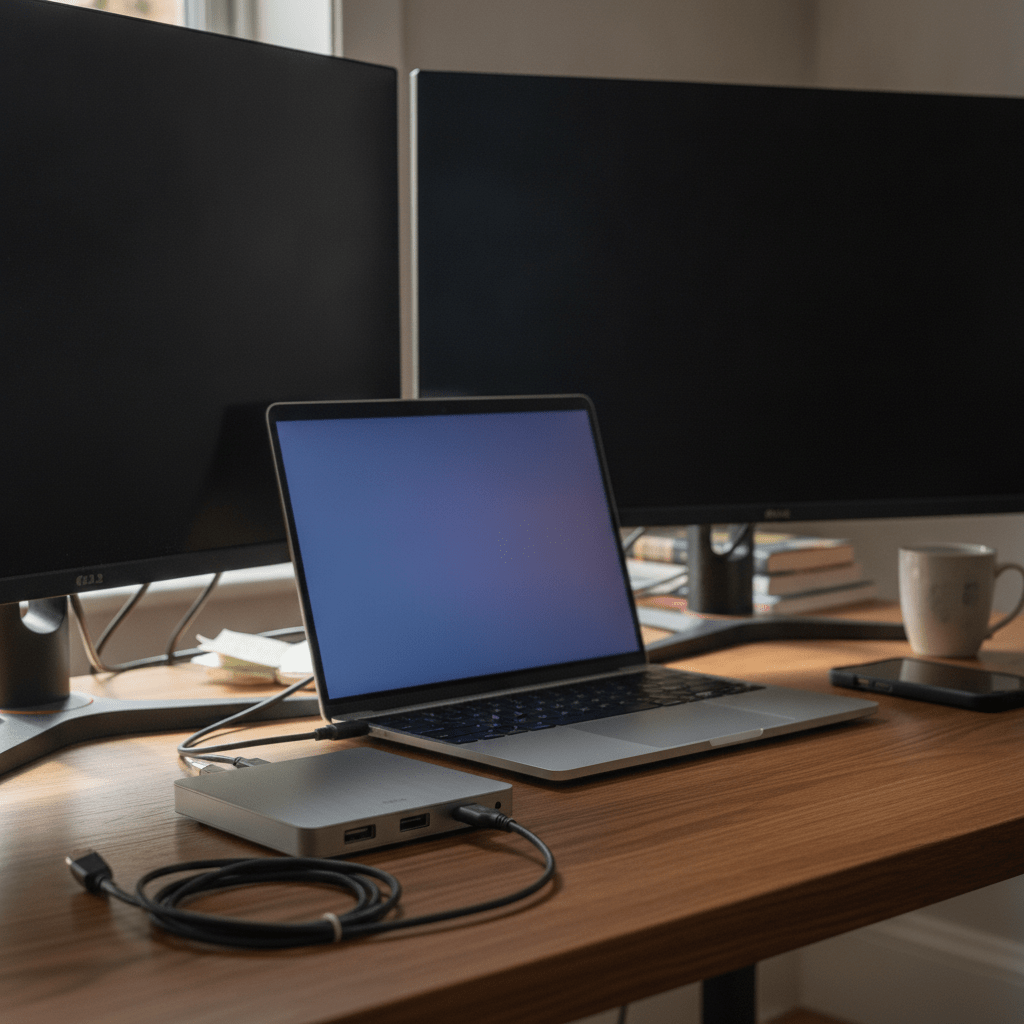
For most laptop-based dual monitor setups, a USB4 or Thunderbolt-class docking hub is the safest buy — it carries full DisplayPort 1.4 bandwidth for two 4K@60Hz screens over one cable, and usually charges the laptop too. Look for one that explicitly lists “dual 4K@60Hz” rather than just “4K compatible”, since the vaguer claim often means one 4K screen or two at a lower resolution.
If your laptop is a base-spec MacBook Air or an older machine limited to one native external display, look for a hub described as DisplayLink-based rather than a plain MST hub — that’s the detail that actually adds a second screen. Prices generally sit around ~£25–£45 (as of August 2026 — check the current price via the link below, as UK pricing shifts often).
Pros
- Single cable for video, charging, and peripherals
- DisplayLink models add a second screen to laptops that don’t natively support one
- Tidier desk than running two separate video cables
Cons
- Budget hubs without MST/DisplayLink often can’t drive two independent extended 4K screens
- One more point of failure than a direct cable connection
Best Dual Monitor Arm for UK Desks
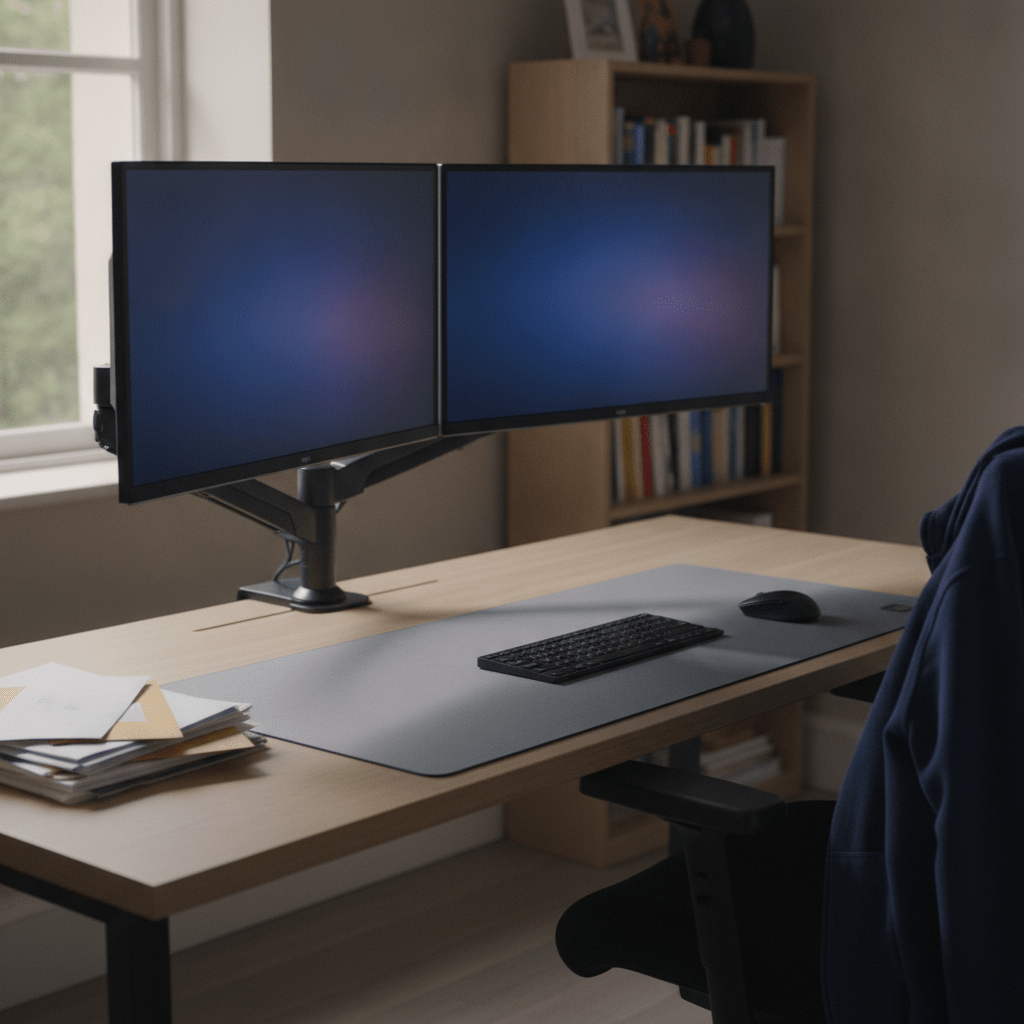
A dual gas-spring VESA arm suits most people running two similarly-sized monitors — one-handed height and angle adjustment, rather than fighting a stiff pole mount. Check the weight rating covers both monitors combined, and confirm your screens have VESA mounting holes on the back (almost all standalone monitors do; some ultra-budget all-in-ones don’t).
Clamp-mount arms suit most desks; if yours has no room for a clamp, look for a grommet-mount version instead. Expect to pay ~£30–£55 for a decent dual arm (as of August 2026 — check the current price before buying, as this range wasn’t confirmed against a live listing).
Pros
- Frees up desk space underneath both screens
- Makes matching both monitors to the same eye-level height easy
- One-handed height and angle adjustment on gas-spring models
Cons
- Needs a clear desk edge for the clamp, or a drilled hole for grommet mounting
- Cheaper arms can sag over time under heavier 32-inch panels
Best Cable for a Reliable Dual Monitor Connection
A certified cable solves more dual monitor problems than people expect — flickering, a screen dropping resolution, or a monitor that won’t detect at all often traces back to an uncertified or overly long cable rather than a settings issue. Look for cables explicitly rated for your target resolution and refresh rate.
Budget options for standard 4K@60Hz start from ~£5–£15, rising to ~£15–£25 for certified high-bandwidth cables rated for 8K or higher refresh rates (as of August 2026 — prices move often on Amazon UK, so check the live price below). For a run over two metres, pay extra for a certified one — signal degradation over distance is a common cause of a dropping connection.
Pros
- Cheapest fix for flickering or dropped-resolution problems
- Certified cables carry a clear bandwidth/resolution rating so you know what you’re getting
Cons
- Uncertified cables can look identical to certified ones while performing worse
- Longer cable runs need a higher spec than the box always makes clear
Full Gear Comparison for a Dual Monitor Setup
Here’s how the main accessory categories stack up once you’ve got two monitors ready to connect.
| Gear | Typical price (Aug 2026) | Best for | Skip if… |
|---|---|---|---|
| Certified DisplayPort/HDMI cable | ~£5–£25 | Fixing flicker, dropped resolution, or detection issues | Your existing cable already came with a certified monitor and works fine |
| Basic USB-C hub (no MST/DisplayLink) | ~£15–£25 | One extended display plus USB ports | You need two independent extended 4K screens — this won’t reliably do it |
| USB4 / Thunderbolt dock | ~£60–£150 | Two 4K@60Hz screens from a single cable, plus charging | Your laptop already has two free video-capable ports |
| DisplayLink hub | ~£25–£45 | Adding a second screen to a base MacBook Air or older laptop | Your laptop already supports two native external displays |
| Dual monitor arm | ~£30–£55 | Matching eye-level height and freeing desk space | Your monitors don’t have VESA mounting holes |
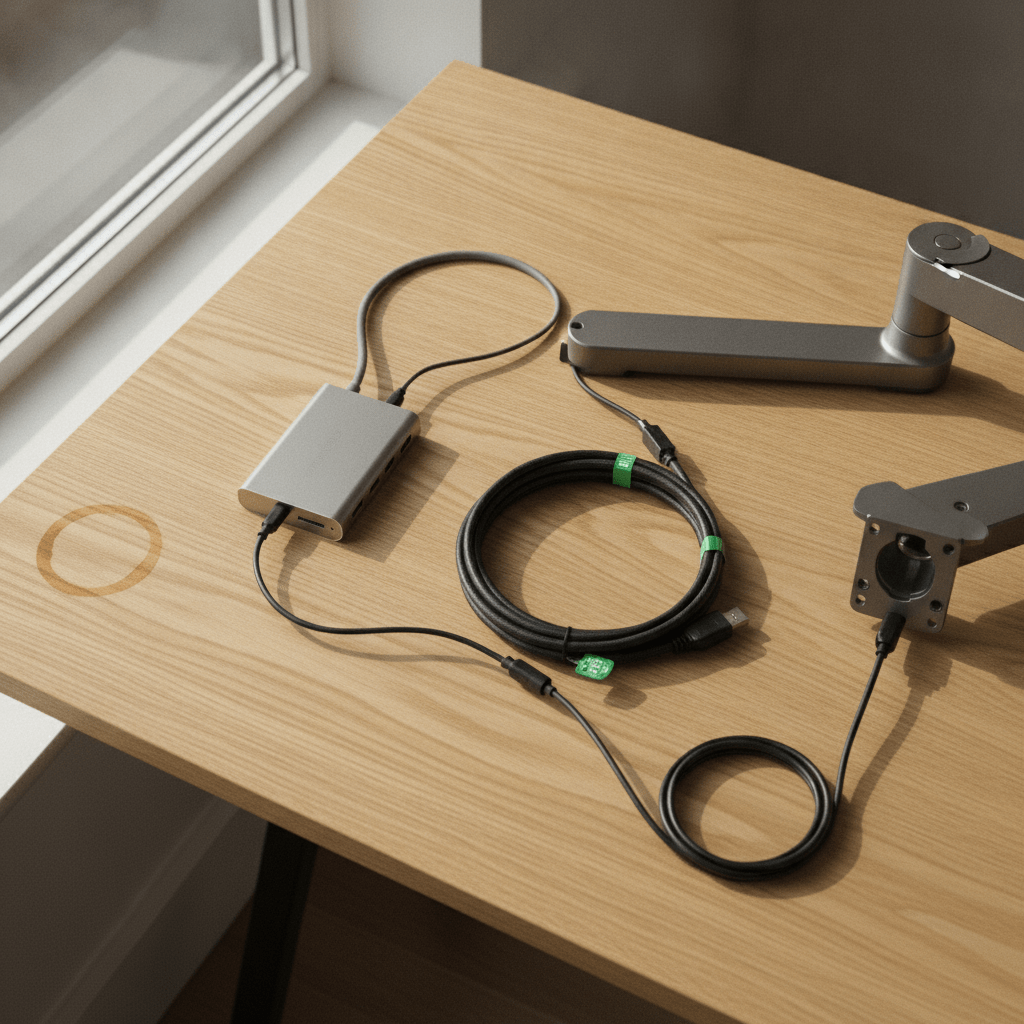
Which Dual Monitor Setup Is Right for You?
Working from home on a Windows laptop
If your laptop has one free video-capable USB-C port, a USB4/Thunderbolt dock is the cleanest option — one cable for two screens, charging, and any peripherals. If you’ve already got two free video outputs, save the money and run two direct cables instead.
Gaming across two monitors
Prioritise HDMI 2.1 or DisplayPort 1.4 cables over a hub — gaming wants the lowest-latency, highest-bandwidth direct connection you can get, and most docking hubs add a small amount of overhead you don’t want on your primary display.
Base-spec MacBook Air owners
A DisplayLink-based USB-C hub is the option that actually works for you — plain MST hubs and direct cables will only add one external display, since the lid-open limitation is on the laptop’s graphics output, not the cable.
Budget-conscious buyers
Start with a certified cable before spending on a hub or dock — plenty of “my second monitor won’t work” problems are cable issues, not hardware limitations, and a £10–£15 cable is the cheapest thing to rule out first.
Whichever route you go, our everyday laptop guide is worth a look if your current machine simply doesn’t have the ports or output to support two screens — sometimes the fix is a different laptop, not another adapter.
Frequently Asked Questions
Can any laptop run two external monitors?
Not every laptop can — it depends on the graphics output, not just port count. A laptop with two video-capable ports can usually run two external displays natively; one with only a single video-capable port needs a DisplayLink-based hub to add a second screen.
Why does my second monitor show a duplicate screen instead of extending?
Duplicate mode is a display setting, not a hardware fault. On Windows, press Windows key + P and choose Extend. On a Mac, open System Settings > Displays and untick Mirror Displays. It’s the most common dual monitor problem and usually fixes in under a minute.
What’s the difference between HDMI, DisplayPort and USB-C for connecting a second monitor?
HDMI 2.0 supports 4K@60Hz on nearly every monitor; HDMI 2.1 adds 4K@120Hz and 8K@60Hz. DisplayPort 1.4 is what most laptops use to drive two 4K displays from one port. USB-C is just a connector shape — it only carries video if the port supports DisplayPort Alt Mode or Thunderbolt.
Do I need a docking station to run two monitors from a laptop?
Only if your laptop lacks two free video-capable ports. If it has them, two direct cables work just as well for less money. A dock earns its place when you’ve only got one usable video port to split, or want charging and peripherals on the same cable.
Can I run two 4K monitors from one USB-C port?
Usually yes, but only with the right hardware — DisplayPort 1.4 with DSC compression or a USB4/Thunderbolt-class dock. A basic USB-C hub without MST or DisplayLink support generally can’t drive two independent extended 4K displays at once.
Why do my two monitors look different sizes or blurry (scaling mismatch)?
Blurry text usually means two different-resolution monitors are sharing one scaling setting. Set each display’s scale percentage individually — per-monitor on Windows, or via Displays > Advanced on macOS. Windows 11’s per-monitor scaling has improved recently, but it’s still worth checking manually.
Is a monitor arm worth it for a dual monitor setup?
A dual VESA arm is worth it for most people running two screens side by side. It frees up desk space underneath both monitors and makes it far easier to match them to the same eye-level height than juggling two separate stands.
Can I use two monitors with different refresh rates or resolutions together?
Yes — Windows and macOS both run mismatched displays fine, whether that’s a 60Hz screen next to a 144Hz one or 1080p next to 4K. Each runs at its own native settings; the only downside is windows appearing to resize slightly when dragged between them.
How do I set up dual monitors on a MacBook with the lid closed?
Connect the MacBook to power, connect both external monitors, then close the lid — it stays awake on power with an external keyboard or mouse attached. MacBook Air and Pro models with the M3 chip support two external displays this way, up to 6K@60Hz on the first screen.
Why won’t Windows detect my second monitor?
Usually one of four things: the monitor’s powered off or on the wrong input, the cable isn’t carrying a signal, graphics drivers need updating, or a hub/splitter doesn’t actually support two independent extended displays. Check Display Settings > Multiple displays > Detect after the physical connections.
Ready to Set Up Your Dual Monitor Workspace?
Get the cable or dock sorted first — it fixes more problems than any Windows or macOS setting ever will.
Prices and product availability change regularly — we do our best to keep figures current, but always check the retailer’s page for the latest price before buying. This article contains affiliate links; if you buy through one, TheTechVector may earn a commission at no extra cost to you. It doesn’t affect which products we recommend.
Don’t forget to complete your WFH setup with an ergonomic mouse — your wrists will thank you for it.

Written by the TheTechVector Team
We research UK broadband, VPN, laptop, and mobile deals so you don’t have to. All prices are checked before publication — if something’s out of date, let us know.
This site contains affiliate links to products. We may receive a commission for purchases made through these links.