Affiliate disclosure: TheTechVector earns a commission if you sign up via links on this page, at no extra cost to you. Our recommendations are based on independent research — we are not paid to favour any provider. Learn more about how we make money.
TV refresh rate is one of those specs that gets thrown around on every product page — 60Hz, 120Hz, “Motion Rate 240” — without anyone actually explaining what it does to the picture you watch. If you’re trying to work out whether a 120Hz TV is worth paying extra for, or whether your current 60Hz set is holding you back, this guide walks through what refresh rate actually means, how it interacts with what you watch in the UK, and when it genuinely matters versus when it’s just a bigger number on a spec sheet.
Last updated: August 2026
The short version: most people watching broadcast TV and streaming don’t need 120Hz. It mainly earns its keep for gaming on a PS5 or Xbox Series X, and for live sport. Everything else in this guide explains why — and how to avoid paying for a number that doesn’t reflect what’s actually happening inside the TV.
60Hz vs 120Hz at a glance
Before the detail, here’s the short comparison. Use this to work out which row matches how you actually watch TV, then read the section that applies to you.
| Native refresh rate | Typical UK price band (as of August 2026) | Best for | HDMI port needed | What to check on the spec sheet |
|---|---|---|---|---|
| 60Hz | ~£229–£400 for a budget 43–50-inch 4K set | Broadcast TV, streaming, casual viewing | HDMI 2.0 is enough | “Native refresh rate: 60Hz” — ignore any “Motion Rate”/”TruMotion” number |
| 120Hz | From roughly ~£300–£500+ for entry-level 120Hz sets, more for mini-LED/premium panels | PS5/Xbox Series X gaming, live sport, motion clarity on fast film content | HDMI 2.1 on the port, the cable, and the source device | “Native refresh rate: 120Hz” plus “HDMI 2.1” and “VRR” listed explicitly |
What Does TV Refresh Rate Actually Mean?
TV refresh rate is how many times a screen redraws its image every second, measured in Hertz (Hz). A 60Hz TV refreshes the picture 60 times a second; a 120Hz TV refreshes it 120 times a second. That’s it — it’s a property of the panel itself, not of whatever you’re watching.
A higher refresh rate gives the TV more opportunities to redraw the image each second, which can make fast-moving objects — a football, a car chase, a fast camera pan — look smoother and less blurry. It doesn’t, on its own, make the picture sharper, brighter or more colourful. Those are separate specs (resolution, HDR, panel type) that get bundled into the same marketing paragraph and confused with refresh rate constantly.
The important distinction — and the one nearly every spec sheet blurs — is between the TV’s native (panel) refresh rate and a processing-boosted marketing number. We’ll come back to that further down, because it’s genuinely one of the most misleading practices in TV marketing right now.
Refresh Rate vs Frame Rate: Why People Mix Them Up
Refresh rate is a property of the TV. Frame rate is a property of the video you’re watching. They’re related, but they’re not the same thing, and mixing them up is where most of the confusion around this topic starts.
Content is filmed or broadcast at a fixed frame rate: cinema films are shot at 24 frames per second (fps), UK broadcast content has historically sat around 25fps, and sport or fast-moving footage is often shot at 50fps or 60fps. Your TV’s job is to take that source frame rate and display it — which means either matching it directly or converting it to fit the panel’s refresh rate.
This is where the 24fps-film detail actually matters, and it’s one of the few non-marketing reasons a 120Hz panel can look smoother even on ordinary film content: 24 divides cleanly into 120 (24 × 5 = 120), so a 120Hz TV can display each film frame for an even, consistent length of time. It doesn’t divide cleanly into 60, which historically forced TVs into a “3:2 pulldown” pattern that repeats frames unevenly and can cause slight judder. Most modern 60Hz TVs handle this reasonably well now, but it’s a genuine technical reason — not a marketing one — that some viewers notice smoother film playback on a native 120Hz panel.
Do You Actually Need 120Hz for BBC, Netflix and Prime?
For most UK viewers watching broadcast TV, BBC iPlayer, Netflix or Prime Video, no — 120Hz isn’t the spec that changes what you see, because most of that content isn’t delivered at a frame rate anywhere near 120fps in the first place.
UK television has deep roots in the PAL broadcast standard — 625 lines at 25fps, tied to the UK’s 50Hz mains electricity frequency, first used for UK colour broadcasts back in 1967. Compare that to the US, which used NTSC at roughly 29.97fps tied to a 60Hz mains supply. PAL and NTSC themselves are legacy analogue standards that modern digital broadcast and streaming have moved past, but the 50Hz heritage is exactly why UK broadcast and streaming apps still commonly output at 50Hz-based frame rates rather than the 60Hz default you’ll see referenced in US tech coverage. Practically, this matters less than it sounds — modern TVs handle the conversion automatically — but it’s worth knowing so the “PAL vs NTSC” question stops being a mystery.
BBC iPlayer has historically included frame-rate detection that switches its output to 50Hz for correct UK playback, matching the broadcast-native frame rate of most of its content. Netflix, Disney+, Apple TV and Prime Video have generally output at 60Hz with judder-reduction processing layered on top, rather than switching to a true 50Hz output. Worth flagging honestly: that detail comes from community testing and secondary tech coverage rather than an official engineering statement from the BBC or the streamers, and app behaviour like this can change with updates — so treat it as generally true rather than gospel, and don’t be surprised if it shifts.
The practical upshot: your weekly viewing mix — not the number on the box — should drive the decision. If your week is mostly broadcast TV, iPlayer and general streaming, a well-reviewed 60Hz set with good HDR and solid black levels will do more for picture quality than 120Hz will. If your week also includes gaming or a lot of live sport, that changes the calculation — which is exactly what the next two sections cover.
120Hz for Gaming: What PS5 and Xbox Series X Actually Need
Gaming is where 120Hz has a genuine, measurable benefit. Both the PS5 and Xbox Series X support 120fps output in a growing list of games — titles like Fortnite, several Call of Duty entries, Destiny 2, Doom Eternal, Halo Infinite on Xbox, and Gran Turismo 7 on PS5 among others. That list changes often as developers patch in support, so don’t treat any single article’s game list as exhaustive — check the specific title you play.
To actually see that 120fps on screen, you need a TV with a native 120Hz panel and an HDMI 2.1 connection between console and TV — port, cable, and ideally Variable Refresh Rate (VRR) support enabled too, which smooths out frame-rate dips instead of letting them stutter or tear. Without HDMI 2.1 on both ends, the console will cap its output well below 120fps regardless of what the TV’s marketing claims.
If gaming is a meaningful part of your week — even casually — this is the strongest, least debatable reason to pay extra for a genuine 120Hz set. Faster, smoother motion and lower input lag both help with fast-paced games, and it’s the one use case where the benefit isn’t subtle.
HDMI 2.0 vs HDMI 2.1: Why the Cable and Port Matter as Much as the Panel
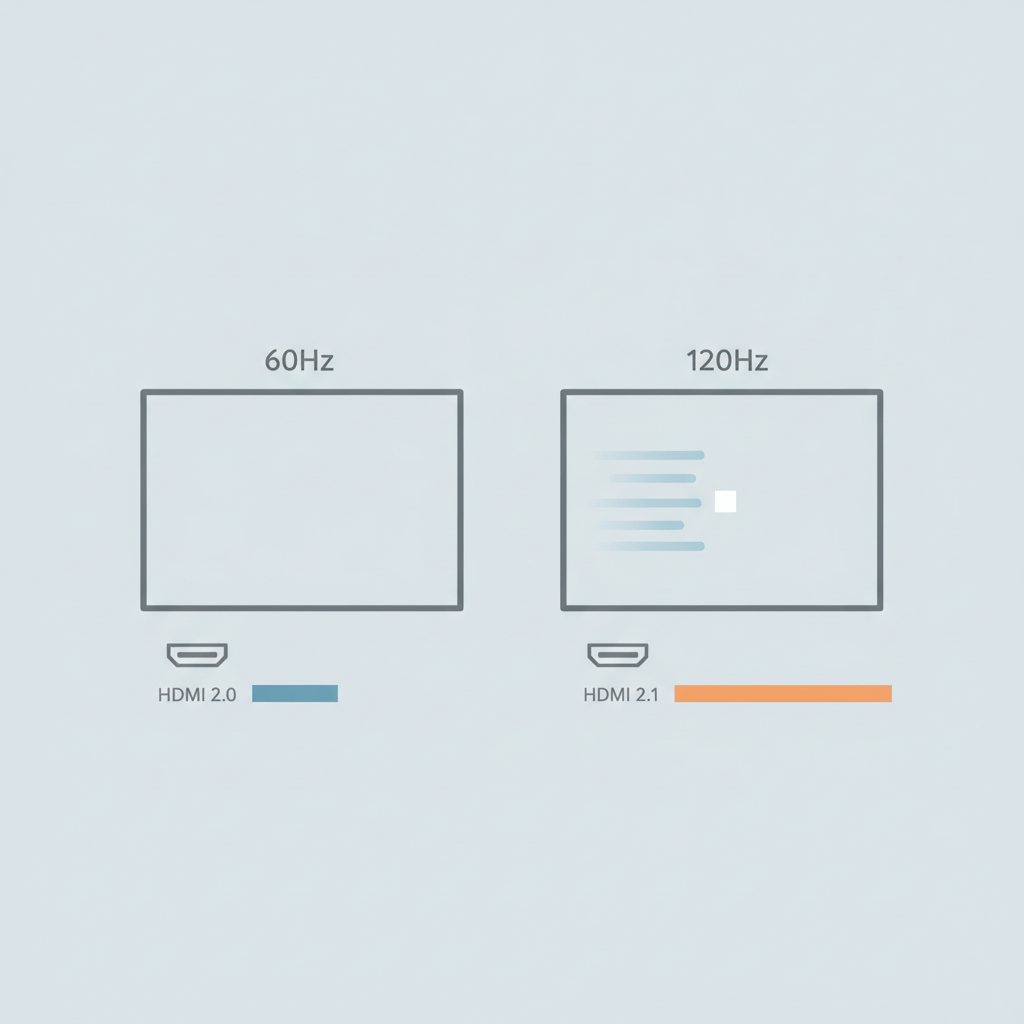
HDMI 2.0 carries up to 18Gbps (around 14.4Gbps of usable, effective bandwidth). HDMI 2.1 carries up to 48Gbps (around 42.6Gbps effective) — over twice the headroom. HDMI 2.0’s realistic ceiling is 4K at 60Hz. Getting a genuine 4K signal at 120Hz needs roughly 36Gbps in uncompressed 4:4:4 colour, which comfortably exceeds HDMI 2.0’s 18Gbps limit — hence the hard requirement for HDMI 2.1 hardware.
This is the part competitors consistently skip, and it’s the single most common way people end up disappointed by a “120Hz TV”: the panel can only hit 4K/120Hz if the TV’s HDMI port, the HDMI cable, and the source device (console, streaming box, PC) all support HDMI 2.1. Miss any one of the three and you’re capped at HDMI 2.0 speeds — commonly 4K at 60Hz — even though the panel underneath is perfectly capable of 120Hz.
A few common ways this trips people up:
- Buying a 120Hz TV but plugging the console in through an older HDMI 2.0 soundbar or AV receiver as a pass-through — the weakest link in the chain sets the ceiling for everything downstream of it.
- Using a cable that came in the box with an older device, which may only be rated for HDMI 2.0 speeds even if the plug fits the new port fine.
- Not checking which of the TV’s HDMI ports actually support full-bandwidth HDMI 2.1 — some mid-range TVs only wire one or two ports at full spec, with the rest capped lower.
It’s the same “weakest link” principle that shows up in networking and home office gear — the same logic applies to Wi-Fi standards and to USB-C and HDMI bandwidth on monitors: a fast standard on one end of the cable doesn’t help if the other end, or the cable itself, can’t keep up.
“Motion Rate” and Other Marketing Numbers: What to Actually Look For
“Motion Rate” (Samsung), “TruMotion” (LG) and “Motionflow XR” (Sony) are marketing numbers, not refresh rates. They’re calculated from processing effects layered on top of the panel’s actual, native refresh rate — not a literal measurement of how many times the screen redraws each second.
A concrete example: Samsung’s “Motion Rate 240” branding has historically been used on TVs with a native 120Hz panel — not a genuine 240Hz screen. The branded number is roughly double (or more) the real refresh rate, inflated by backlight scanning and interpolation processing that the manufacturer counts as part of the “effective” motion score.
The fix is simple and worth writing down before you go shopping: ignore the branded motion number entirely and look for the phrase “native refresh rate” or “panel refresh rate” in the spec sheet. That figure — usually 60Hz or 120Hz — is the one that actually tells you what the screen is doing. If a listing only shows a big branded number with no native refresh rate figure anywhere, that’s usually a sign the native rate is lower than the marketing wants you to assume.
Motion Interpolation and Black Frame Insertion, Explained Honestly
Motion interpolation and Black Frame Insertion (BFI) are two different tools TVs use to handle motion, and most spec sheets never explain the difference — or the trade-offs of either.
Motion interpolation — sometimes called motion smoothing — works by generating extra frames that didn’t exist in the original footage and inserting them between the real ones, to make motion look smoother on a higher-refresh-rate panel. It’s also the cause of the “soap opera effect”: film and TV drama shot at 24fps can start looking artificially smooth and video-like, closer to how a live soap opera or sports broadcast looks, rather than the slightly judderier motion viewers associate with “cinematic” footage. If a film looks strangely fluid and a bit off on a new TV, this setting is almost always why. It’s usually labelled something like “Motion Smoothing,” “TruMotion,” “MotionFlow” or “Auto Motion Plus” in the picture settings menu, and it can be turned off — most enthusiasts recommend doing exactly that for film and drama, while leaving some level of it on for fast sport.
Black Frame Insertion works completely differently: instead of adding frames, it shortens how long each real frame stays visible by flashing a black frame in between, which cuts down motion blur on sample-and-hold LCD and OLED panels. It’s a genuine alternative to interpolation, not the same technology wearing a different name — but it comes with real trade-offs: it dims the overall picture and can cause visible flicker for some viewers, particularly at lower brightness settings. It tends to work better on OLED panels, which have near-instant pixel response, than on LCD panels, which are more prone to ghosting and crosstalk artefacts when BFI is switched on.
So — 60Hz or 120Hz? A Straight Answer by Viewing Habit
Skip the spec sheet for a moment and think about your actual week. That tells you more than the Hz number does.
If you mostly watch broadcast TV and streaming
A well-reviewed 60Hz 4K set is genuinely enough. Put the money you’d have spent on 120Hz into a better panel — stronger HDR, deeper black levels, better upscaling — because that’s what will actually change how BBC, iPlayer, Netflix and Prime look on your screen.
If you play games on PS5 or Xbox Series X
Go 120Hz, and check the TV explicitly lists HDMI 2.1 and VRR support — not just a big Motion Rate number. Also check your cable and any AV receiver or soundbar in the chain support HDMI 2.1, or you’ll pay for a spec you can’t use.
If you watch a lot of live sport
120Hz is a reasonable upgrade here — fast-moving footage like football and rugby is exactly the content where extra motion clarity is most noticeable, separate from any gaming benefit.
If you’re buying on a strict budget
Don’t let a 120Hz badge push you toward a worse overall TV. A genuinely good 60Hz panel from a reputable brand will usually beat a mediocre 120Hz panel padded out with a big “Motion Rate” number and not much else behind it.
If you’ve landed on wanting a 120Hz set, our best OLED TVs UK guide covers specific models with native 120Hz panels and full-bandwidth HDMI 2.1 across all four ports — worth reading next rather than duplicating those picks here.
How to Check a TV Actually Supports 4K at 120Hz Before You Buy
Follow these steps on any product listing before you buy, rather than trusting the headline spec:
- Search the full spec sheet for “native refresh rate” or “panel refresh rate” — ignore any branded Motion Rate/TruMotion/Motionflow number on its own.
- Check exactly how many HDMI ports are rated as full-bandwidth HDMI 2.1 — some mid-range models only wire one or two ports at full spec.
- Confirm the listing mentions VRR (Variable Refresh Rate) and ALLM (Auto Low Latency Mode) if gaming is a priority — both usually travel alongside genuine HDMI 2.1 support.
- Check your HDMI cable is rated for HDMI 2.1 — cables that shipped with older devices are frequently HDMI 2.0-spec even if the connector looks identical.
- If you’re routing through a soundbar or AV receiver, confirm it also supports HDMI 2.1 pass-through — otherwise it becomes the bottleneck regardless of what the TV and console support.
- For gaming specifically, check the exact game you play supports 120fps output on your console — not every title does, even on PS5 or Xbox Series X.
Frequently Asked Questions
What is a good refresh rate for a TV?
A native 60Hz refresh rate is a good, sufficient refresh rate for most UK viewers watching broadcast TV and streaming services. A native 120Hz refresh rate is a genuinely better choice if you game on a PS5 or Xbox Series X, or watch a lot of live sport, since both benefit from smoother, clearer motion.
Is 120Hz noticeably better than 60Hz?
120Hz is noticeably better than 60Hz for fast motion — gaming, live sport, and fast camera pans in film — because the panel redraws the image more often, reducing blur on moving objects. For ordinary broadcast TV and most streaming content, which isn’t delivered anywhere near 120fps, the difference is far less noticeable.
Do I need 120Hz for Netflix or BBC iPlayer?
No, you don’t need 120Hz for Netflix or BBC iPlayer. Most UK broadcast and streaming content is delivered well under 60fps, rooted in the UK’s historical 50Hz broadcast standard, so a 120Hz panel isn’t the spec that changes how these services look on your TV. HDR quality and black levels matter more for this kind of viewing.
What’s the difference between refresh rate and frame rate?
Refresh rate is how many times per second a TV’s screen redraws its image, and it’s a fixed property of the TV itself. Frame rate is how many frames per second the video content was filmed or broadcast at, and it’s a property of the source — a film, a broadcast, or a game. The TV takes the source frame rate and displays or converts it to match its own refresh rate.
Does refresh rate matter for gaming?
Yes, refresh rate matters significantly for gaming. A native 120Hz TV with HDMI 2.1 and VRR support lets a PS5 or Xbox Series X output up to 120 frames per second in supported games, giving smoother motion and lower input lag than a 60Hz panel capped at 60fps.
What is the “soap opera effect” and how do I turn it off?
The soap opera effect is the artificially smooth, video-like look that motion interpolation gives to films and TV drama shot at 24fps, making them resemble the fluid motion of a live soap opera or sports broadcast rather than traditional cinematic footage. Turn it off in the TV’s picture settings menu, usually under a name like “Motion Smoothing,” “TruMotion,” “MotionFlow” or “Auto Motion Plus.”
Do I need HDMI 2.1 for 120Hz?
Yes, you need HDMI 2.1 for a genuine 4K signal at 120Hz. HDMI 2.0 tops out at around 18Gbps, enough for 4K at 60Hz, while 4K at 120Hz in full colour needs roughly 36Gbps — well beyond HDMI 2.0’s ceiling. The TV’s port, the cable, and the source device all need to support HDMI 2.1, not just one of the three.
Is 60Hz good enough for a TV in 2026?
60Hz is good enough for a TV in 2026 if your viewing is mostly broadcast TV, streaming and casual viewing rather than console gaming or heavy live sport. A quality 60Hz panel with strong HDR and good black levels will usually look better overall than a budget 120Hz set with a weaker panel behind it.
What refresh rate do PS5 and Xbox Series X actually output?
PS5 and Xbox Series X can output up to 120 frames per second in a growing list of supported games, including titles like Fortnite, several Call of Duty games, Destiny 2, Doom Eternal, Halo Infinite on Xbox, and Gran Turismo 7 on PS5. Reaching that 120fps output on screen needs an HDMI 2.1-equipped TV, cable and console connection, ideally with VRR enabled — not every game supports it, so check the specific title.
Once you’ve settled on a refresh rate and picked a set, our wall mounting guide covers the installation side, and if you’re still weighing up screen size and room layout, our TV vs projector comparison is worth a read before you commit to a specific size.
Ready to Choose Your Next TV?
Now that you know what refresh rate actually means for your viewing habits, here’s where to go next.
Prices and availability change often — the search link above shows current listings rather than a fixed figure, since exact pricing shifts week to week.

Written by the TheTechVector Team
We research UK broadband, VPN, laptop, and mobile deals so you don’t have to. All prices are checked before publication — if something’s out of date, let us know.
This article is for general guidance and reflects our independent research as of August 2026. We may earn a commission from qualifying purchases made through links on this page, at no extra cost to you — this never affects which products or brands we recommend.
This site contains affiliate links to products. We may receive a commission for purchases made through these links.